
Build A Golem Controls
Camera, movement, Settings, Codes, crafter, mine, and shops for PC and mobile.
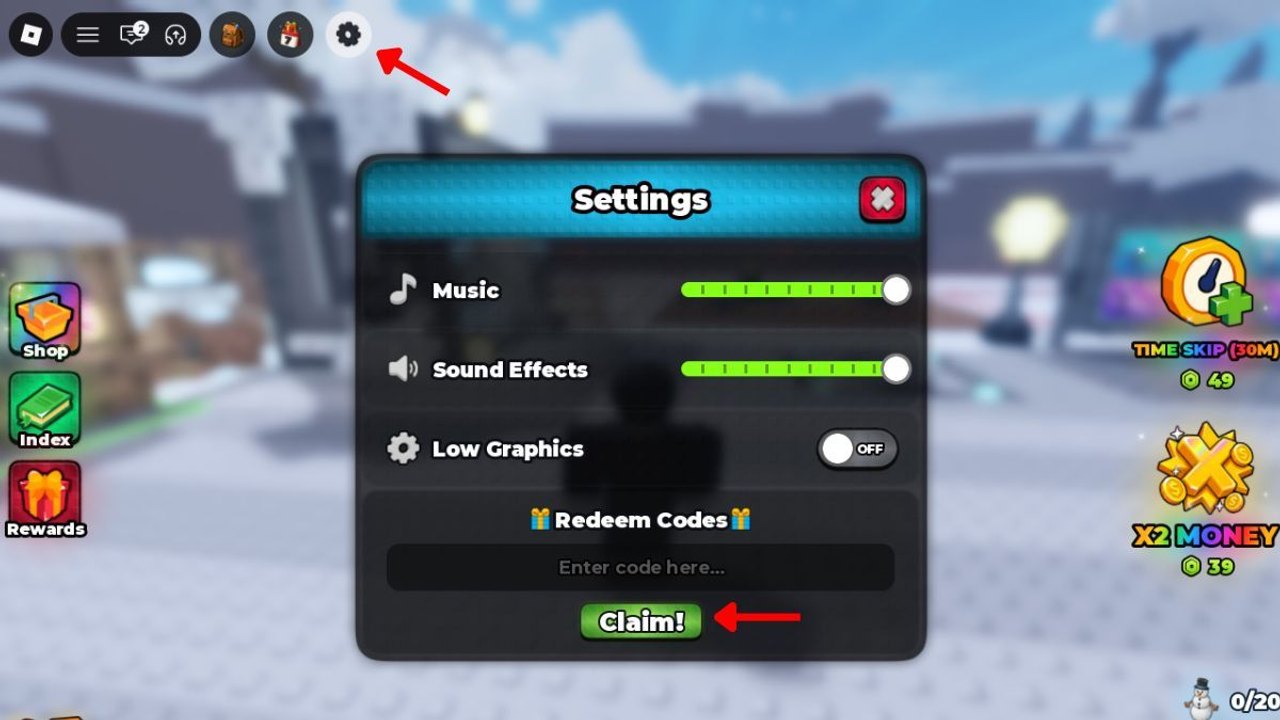
Build A Golem! uses standard Roblox movement plus a small set of experience UI. You do not need a custom keybinder. You do need to know where Settings, Codes, the crafter, the mine, and shops sit, because first-hour stalls are almost always “I cannot find the panel,” not “I forgot WASD.”
The game is an incremental mining simulator by mesmerizing (really) on six-player servers with personal mines. Other avatars can stand in your way. They cannot take your plots. This page is buttons and camera. The loop behind those buttons is How to Play. The first time you press them in the right order is Getting Started.
Roblox camera and movement on PC
- W A S D to walk.
- Right mouse button to look; move the mouse with the button held.
- Mouse wheel to zoom. Zoom out at the crafter if parts hide behind the camera.
- Space to jump, Shift to sprint if your Roblox settings allow it.
- Left click for world prompts (crafter, shops, assignment) when a button appears.
If the camera inverts, open Roblox’s own settings (not the in-game gear) and check camera mode: Classic versus Follow. Third person is easier at the crafter. Shift-lock is optional; turn it off if it fights seating.
Esc on PC opens the Roblox client menu (volume, leave, screenshot). That menu is not Codes. Codes live in the experience Settings gear at the top-left of the HUD.
Roblox camera and movement on mobile
- Left thumb on the joystick to move.
- Right thumb drag to look.
- Pinch to zoom.
- Jump and the contextual interact button on the right side of the HUD.
- Rotate the character so the crafter or mine prompt faces you; mobile cameras clip more than PC.
A six-player server can feel busy on a small screen. Walk around other people instead of mashing jump on their collision. Your mine is still personal.
Tablet players get more HUD space than phones. If Claim on the code box is off-screen, rotate to landscape before you paste THANKS or RELEASE.
Settings gear and Codes
The in-game Settings gear is at the top-left. Open it after the tutorial. Inside is the Codes field. Paste THANKS (15-minute timeskip) or RELEASE (75,000 Cash) and press Claim. That path is also written on the codes page. Type the capitals shown there. Autocorrect on mobile can lowercase a working string and make it fail.
If Claim errors, join a new server and open the gear again. Long-lived instances sometimes reject fresh codes. Confirm you used the HUD gear, not Esc, not a shop, and not the Roblox account settings app.
THANKS should be redeemed early and triggered late, after assignment. RELEASE is Cash for parts and space. When to spend them is How to Mine and Getting Started.
Crafter, mine, and shops
Crafter: walk to the crafting station in the world, use the prompt, seat parts, assemble. Zoom out if a slot is off-camera. Seating rules are How to Build Golems. There is no hidden army-style spawner menu.
Mine: walk to your personal mine, assign a finished golem, confirm Cash ticks. Assignment details are How to Mine. If the prompt does not show on mobile, rotate until you face the slot, then take one step closer.
Shops: world vendors or HUD shop buttons for buying parts when you would rather not roll. Read the stat line before you tap buy. Cosmetics can wait. Rank close calls on the tier list and track bodies on the players hub.
PC versus mobile habits
PC players should keep the mouse wheel handy at the crafter and use keyboard movement to line up assignment prompts. Mobile players should zoom out before opening the crafter, and tap Claim only after the text field shows the full code.
Neither platform is a solo-only mode. You will see up to five other people. Mute music in Settings if you want quiet; that does not change mining. Voice chat, if you enable it in Roblox, is optional social noise, not a required co-op channel.
If a control fails, check three things before you assume a patch broke the game: whether you are in the Roblox menu versus the HUD gear, whether a prompt is on-screen, and whether you are close enough to the station. Then check updates only if a patch just shipped. The last notable update on this timeline is September 1, 2026.
Plan sessions so you are not fighting the camera when THANKS is ready. The session planner assumes you already know these buttons. If codes fail, confirm you used the HUD gear, not Esc. If the crafter camera eats a slot, zoom out before blaming the part. If assignment does not fire on mobile, rotate until the prompt faces you, then walk one step closer rather than mashing the jump button.
Frequently Asked Questions
Quick answers for codes, mining, and crafter questions.
Where is the Codes menu in Build A Golem?
Open the Settings gear at the top-left of the experience HUD, not the Roblox Esc menu. Paste THANKS or RELEASE and press Claim. See codes for the live list.
Why can I not look around on PC?
Hold the right mouse button to look, and use the wheel to zoom. If the camera is inverted, change Roblox camera mode in the client settings, not the in-game gear.
How do I interact with the crafter on mobile?
Walk up, face the station, and tap the interact button. Pinch zoom out if slots are clipped. Seating steps are in How to Build Golems.
Is mining on a different control scheme than walking?
No. You walk to your personal mine with normal movement, then use the on-screen assign prompt. Details are on How to Mine.
Why did my code not work after I typed it?
Check capitals, turn off autocorrect, join a fresh server, and confirm you used the HUD Settings gear. Old instances and lowercase THANKS are the usual failures.